Purchase Down Payment Feature
Overview:
This feature introduces a dedicated "Down Payment" workflow to accurately manage deposits or advance payments made to vendors.
- Allowing the creation of a Vendor Bill for a percentage or fixed amount deposit directly from the Purchase Order (PO).
- Automatically adding a specific Down Payment product line to the PO to track the deposit.
- Ensuring the original item lines remain invoiceable for the balance due, preventing the "no invoiceable line" error.
Configuration: Setting up the Down Payment Product
Before using the feature, you must configure a specific product to represent a down payment or deposit transaction. This is critical for correct accounting.
- Navigate to Inventory > Products.
- Create a new product.
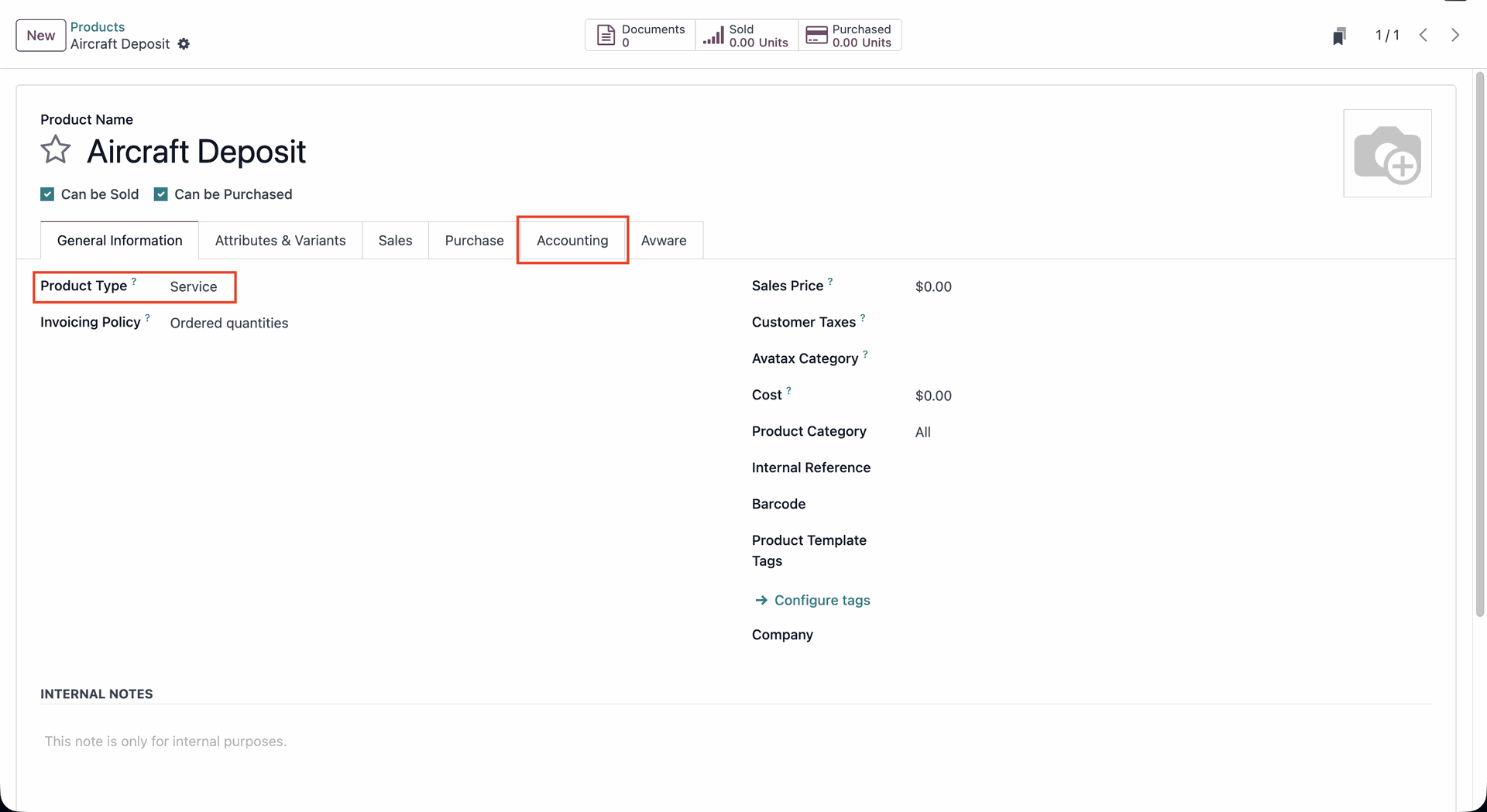
- Product Type: Ensure this is set to Service.
- Accounting: Configure the appropriate Vendor Bill Account.
Workflow: Creating the Down Payment Bill
- Navigate to the confirmed Purchase Order.
- Click the Create Bill smart button.
- In the bill creation pop-up window:
- Select the action "Down Payment (Percentage)" or "Down Payment (Fixed Amount)".
- Example: If the deposit is 5% of the total, select Percentage and enter 5.00.
- Select the product configured for the deposit in the Down Payment Product field (or create a new one from there).
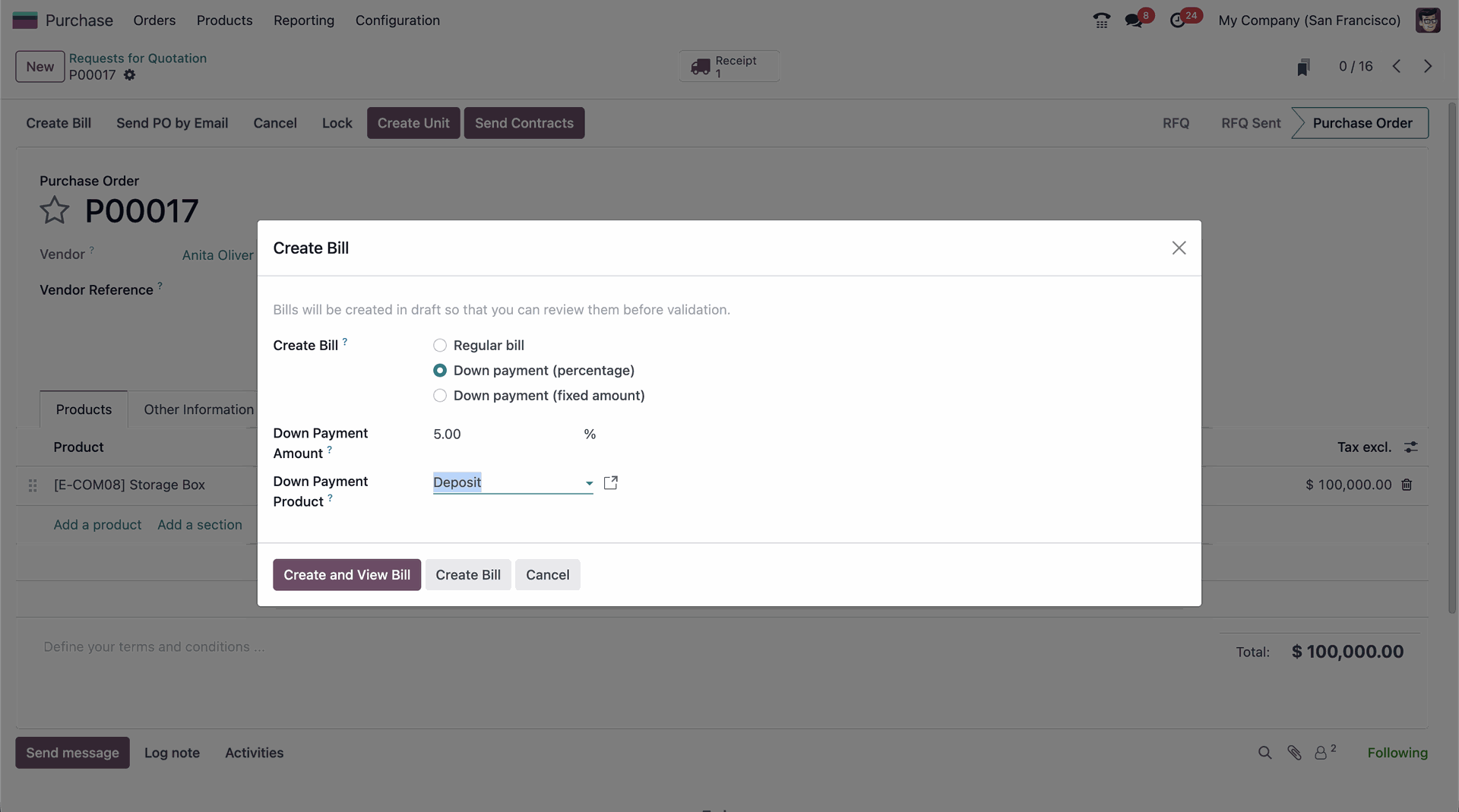
- Select the action "Down Payment (Percentage)" or "Down Payment (Fixed Amount)".
- Click Create and View Bill or Create Bill.
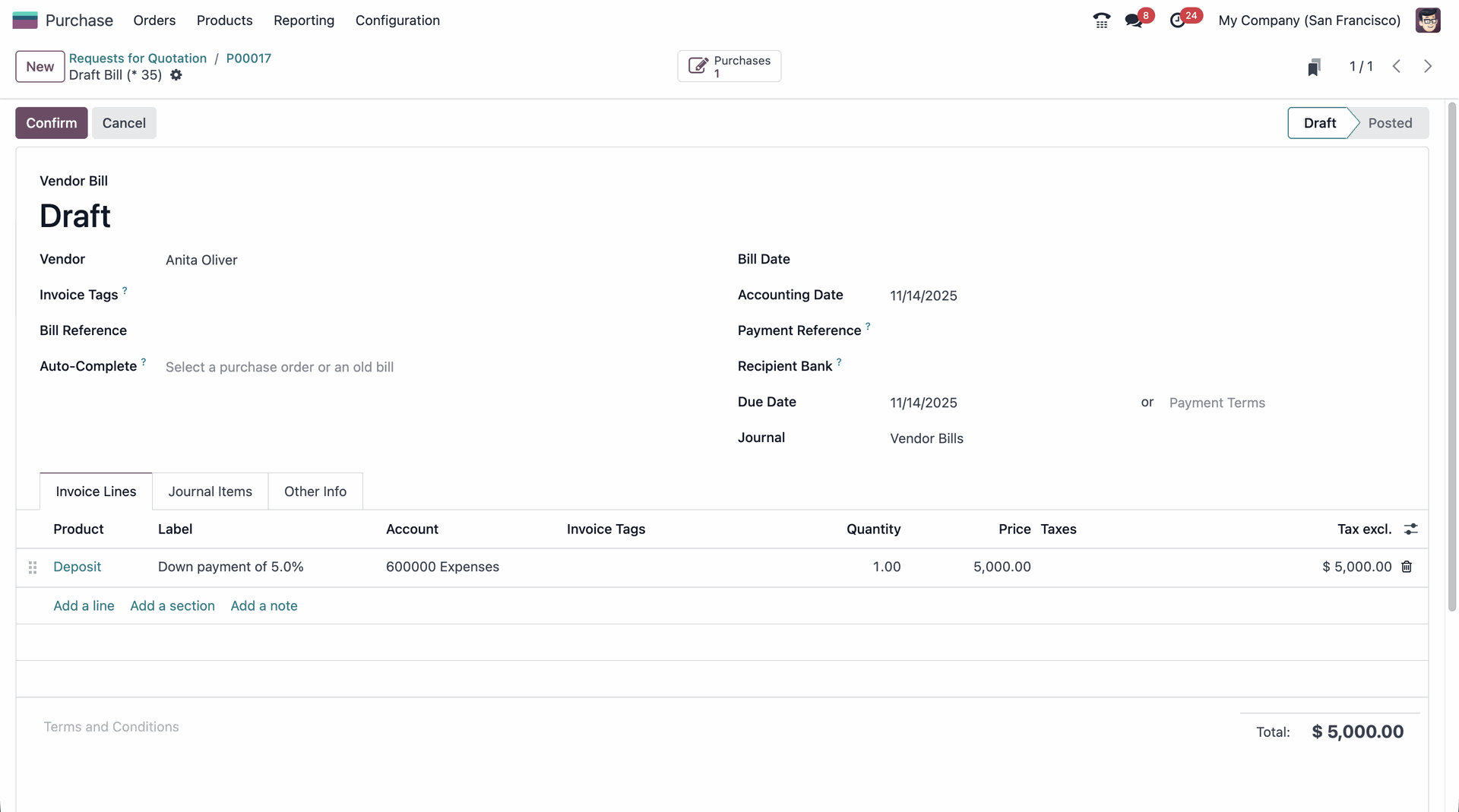
- Odoo automatically creates a draft Vendor Bill for the deposit amount.
- Review the bill details. The line item should be the Down Payment product configured.
- Click Confirm or Post to finalize the deposit bill.
Workflow: Creating the Final Bill
You can create multiple deposit bills for the same Purchase Order. The final bill is created for the balance of the PO after all prior deposit bills have been confirmed.
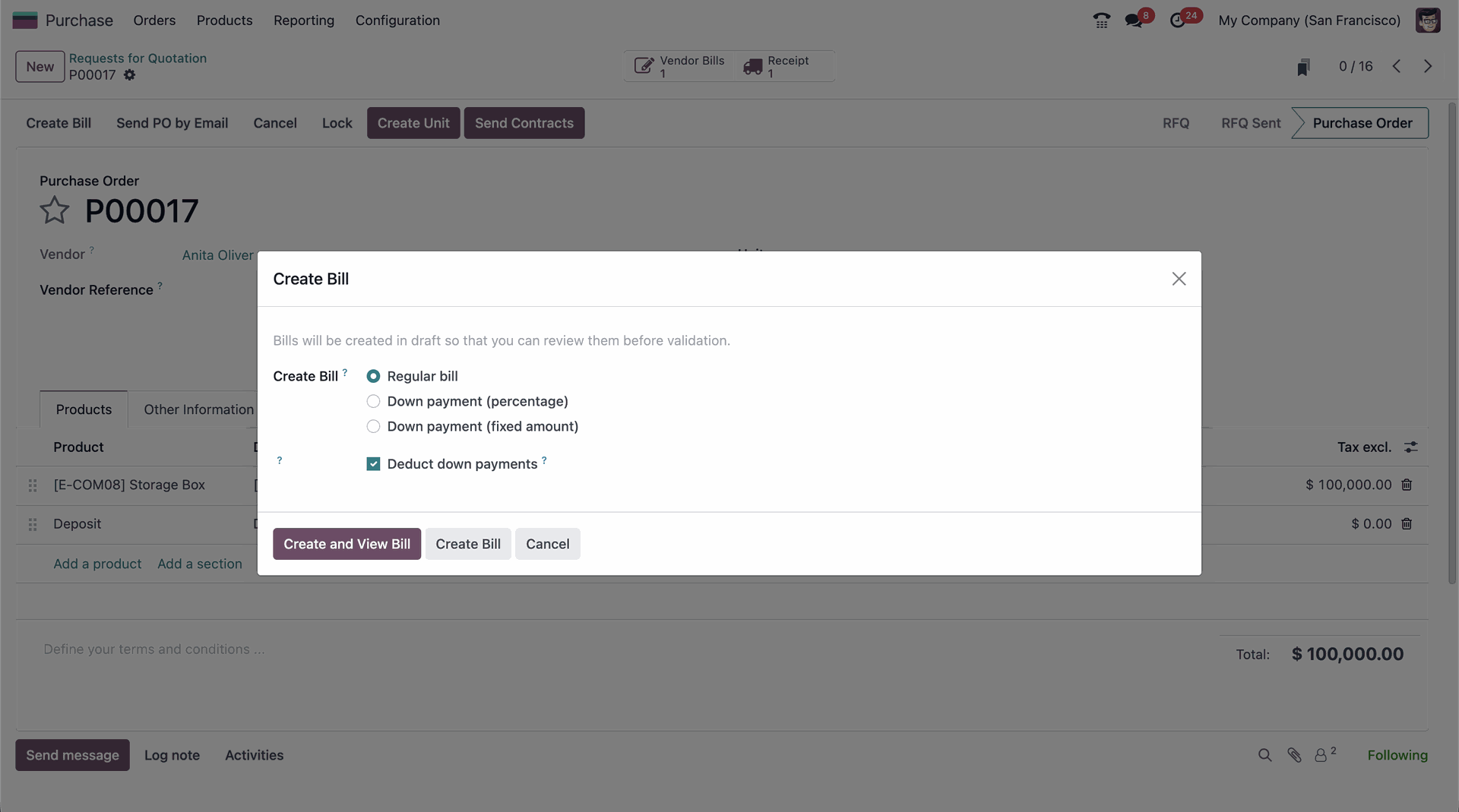
- Click the Create Bill smart button again.
- In the pop-up window, select the action "Regular Bill" or leave it as the default.
- Ensure the Deduct down payments field is enabled. If this is enabled, the system will calculate the bill for the balance amount after the total deposit amount is deducted.
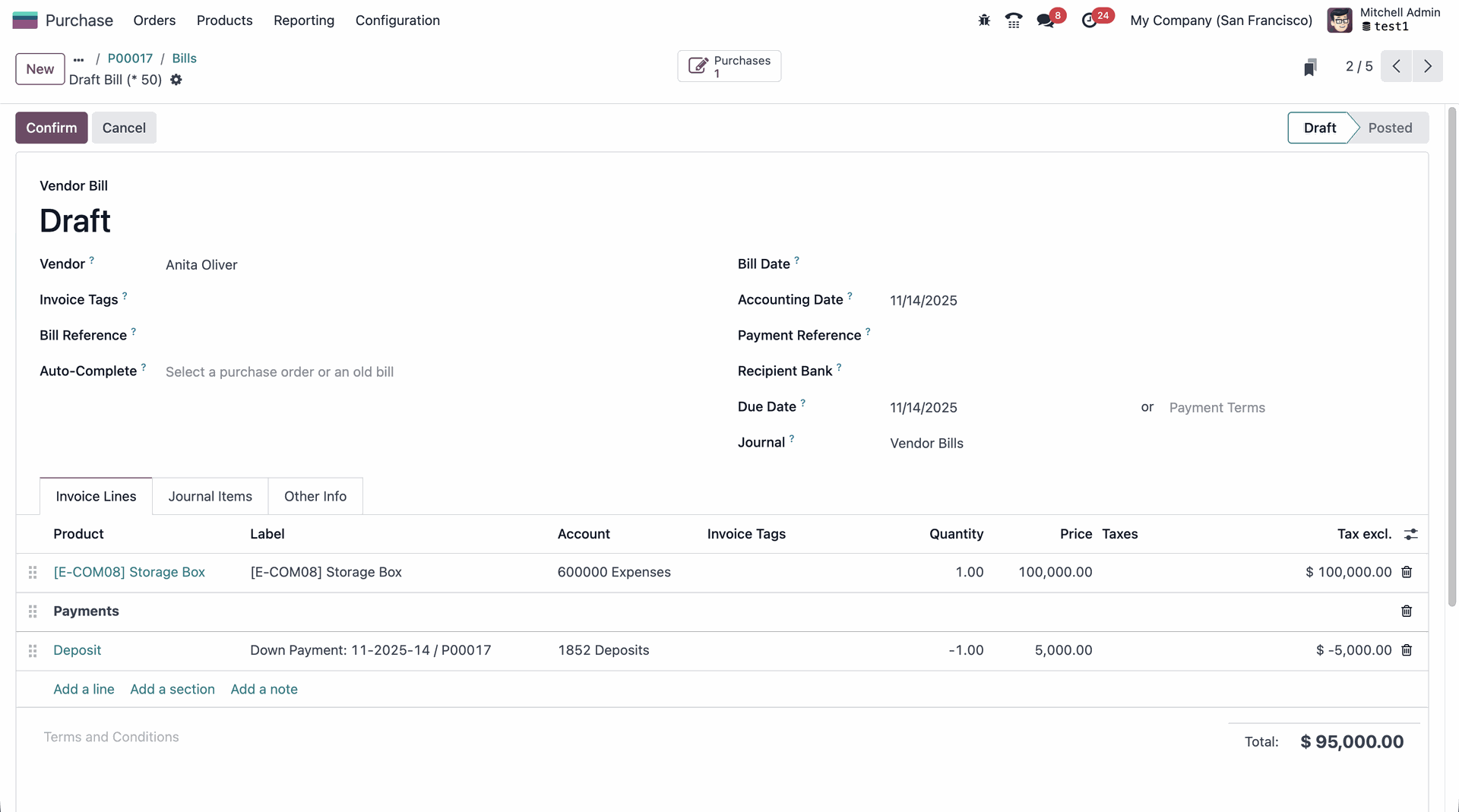
- After creating the bill, the new draft Vendor Bill will now contain two lines:
- The original item line(s) (e.g., the Aircraft) for the full total amount.
- A negative "Payments" line item that automatically deducts the amount of the previous deposit bill.
- The Total of this final bill will be the remaining balance due to the vendor.